Uboss - Adding & Configuring Music On Hold
Services & User Guides
Music On Hold (MOH) controls what a caller hears while they are placed on hold, parked, or busy-camped-on. In Uboss this is managed as a service - BW-Music On Hold - which is assigned at Business level. Once the service is in place, you can optionally override the hold behaviour for individual departments, so different teams within the same business can each have their own hold music.
Adding the Music On Hold Service
- Navigate to the Business or Site the service should apply to, then select ‘Services’ from the left-hand menu.
- Press ‘Add’ on the right-hand side of the Services screen.
- Search for ‘Music’ in the Add a Service box and select ‘BW-Music On Hold’ from the list, then press ‘Add’.
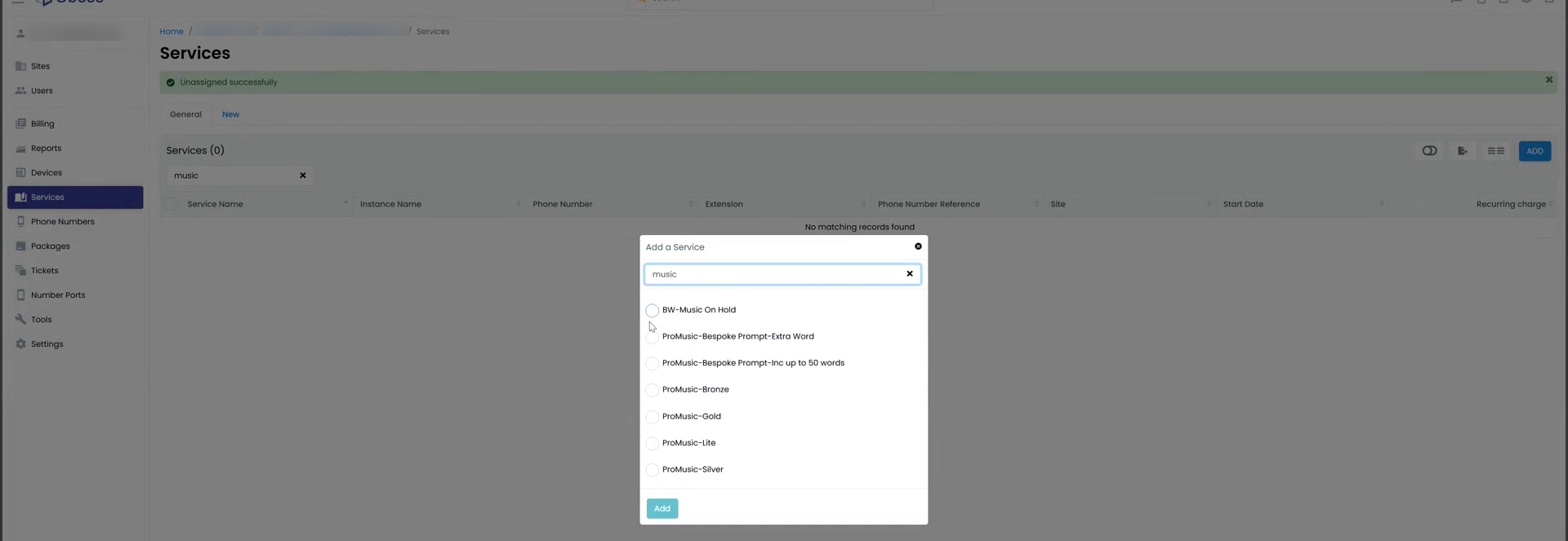
Adding the BW-Music On Hold service from the Add a Service list.
- On the New : Instance screen, give the service a Description if required.
- Under the main BW-Music On Hold section, choose when the default hold audio should apply by ticking or unticking:
- Default System Message - plays the standard Uboss system hold message/music.
- Music During Call Hold - plays while a caller is on hold.
- Music During Call Park - plays while a call is parked.
- Music During Busy Camp On - plays while a call is camped on to a busy extension.
- Under Internal Call Settings, if internal calls (extension to extension) should hear different hold audio to external calls, tick ‘Use Alternate Source for Internal Calls’ and select the audio to use.
- Press Save.
The Music On Hold instance settings, before any departments have been configured.
Once saved, the service appears in the Services list against that Business or Site, e.g. ‘BW-Music On Hold / Music On Hold’.
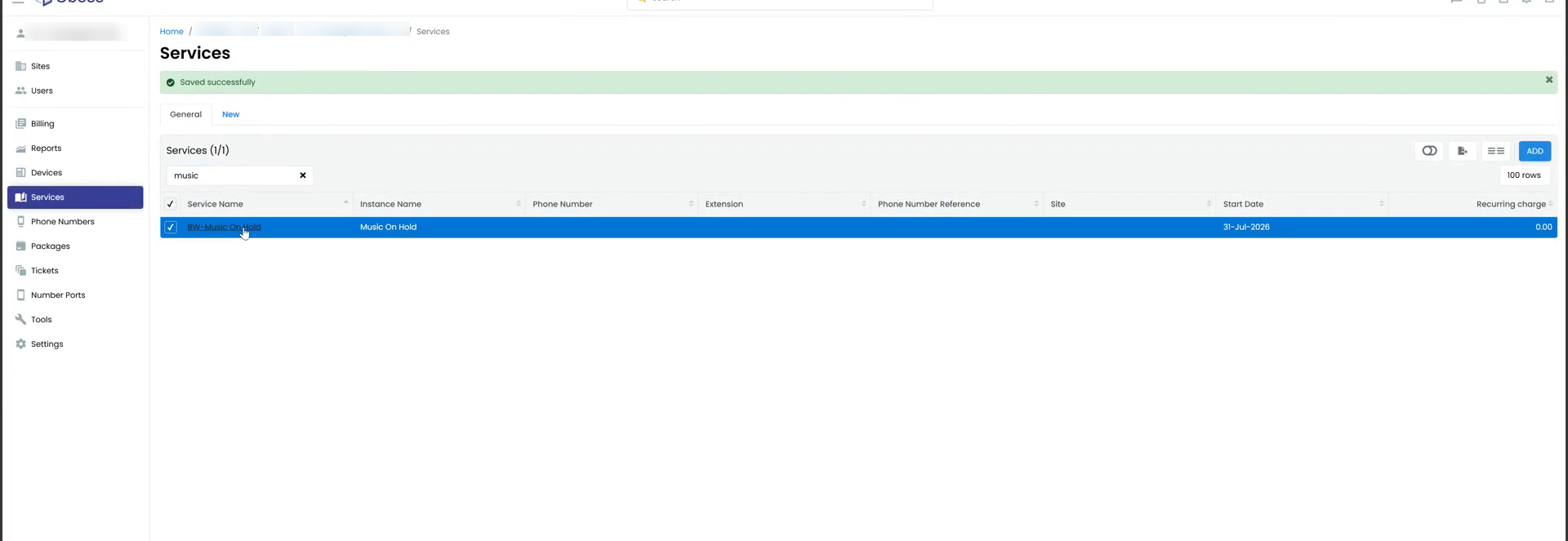
The Music On Hold service once it has been added successfully.
Assigning Music On Hold by Department
By default, every department within the business follows the settings configured on the main Music On Hold service. If one or more departments need their own hold music, announcement, or internal-call behaviour, this can be set per department without affecting anyone else.
- Open ‘Services’ and select the existing Music On Hold service to go into Edit : Music On Hold.
- Scroll down to the DEPARTMENT section. If no overrides have been set up yet this will show ‘No department has been added’.
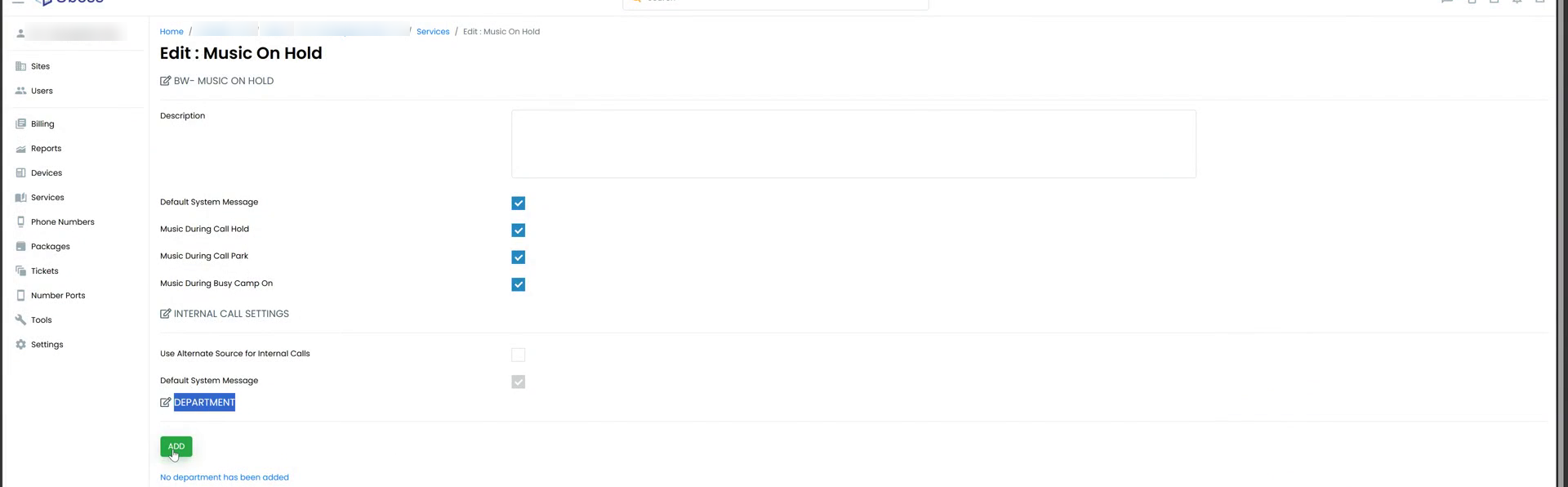
The Department section before any department-level overrides exist.
- Press the green ‘ADD’ button. The Music On Hold - Department Level Assignment window opens.
- Select the required Department from the drop-down list.
- Tick or untick the same four options as at business level, but specific to this department:
- Default System Message
- Music During Call Hold
- Music During Call Park
- Music During Busy Camp On
- If this department needs different audio for internal calls, tick ‘Use Alternate Source for Internal Calls’ under Internal Call Settings and select the Audio file to play.
- Press Save.
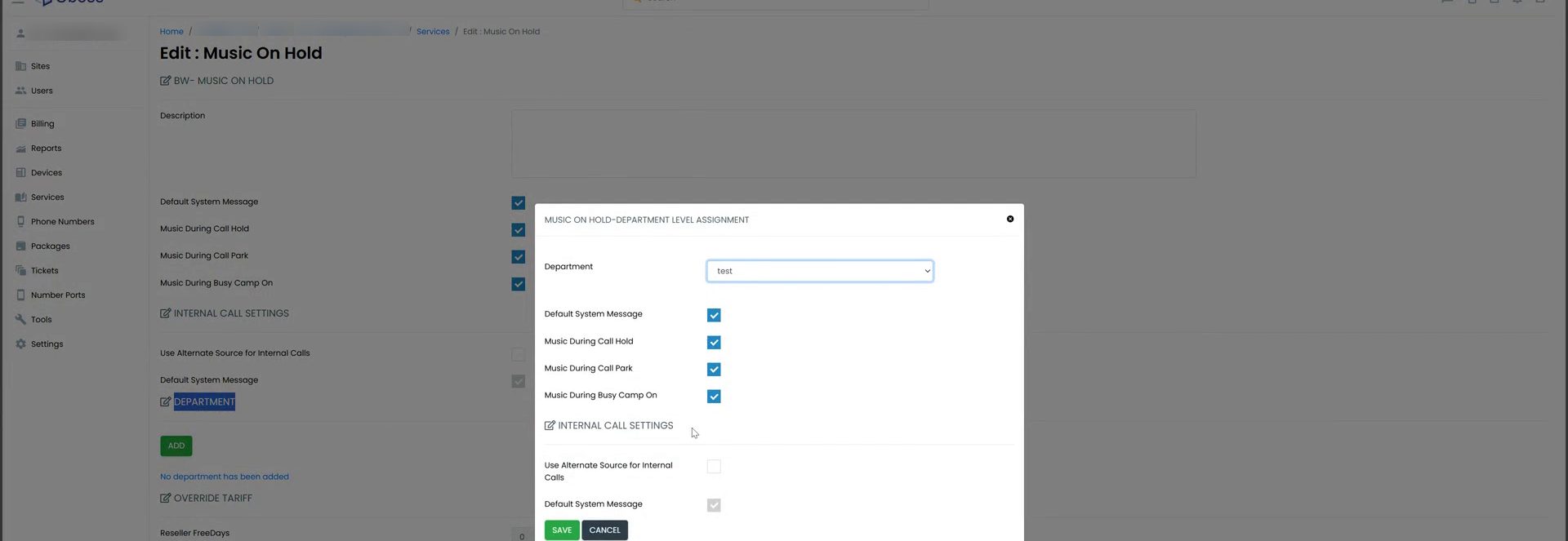
The Department Level Assignment window - settings here only apply to the selected department.
- Repeat the Add steps above for each additional department that needs its own hold settings. Each one is listed under Department with a Delete link alongside it if it needs to be removed later.
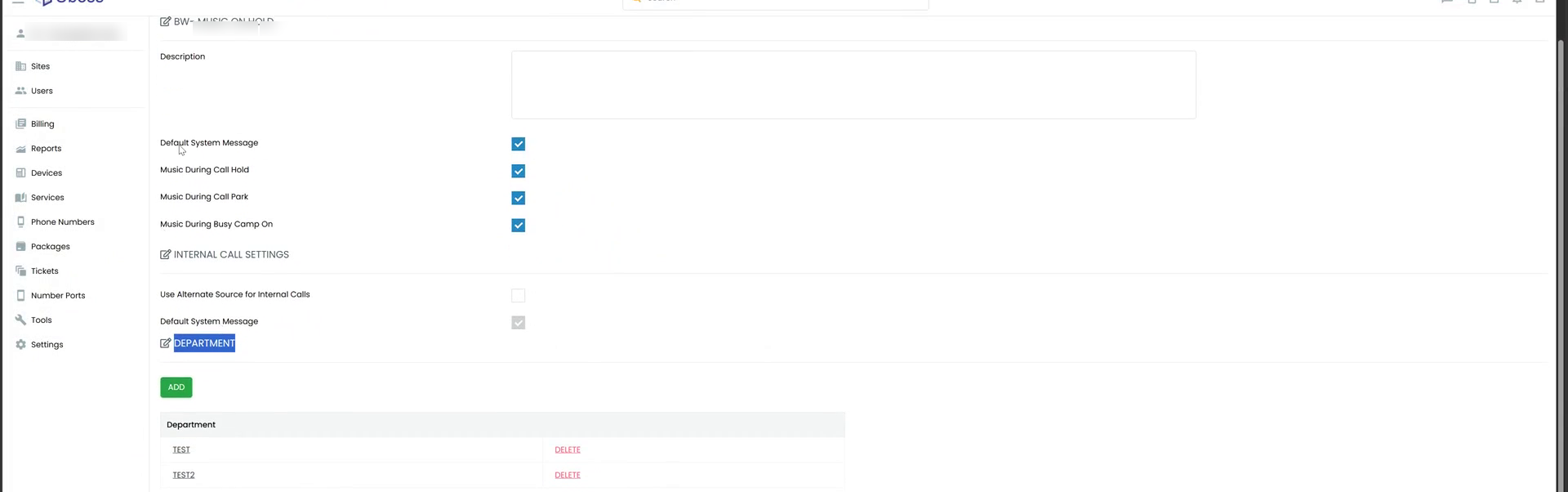
Two departments configured with their own Music On Hold overrides.
Note: Departments must already exist within the Business/Site before they can be selected here - this screen only assigns Music On Hold settings to a department, it does not create one. |
Summary
The BW-Music On Hold service sets the default hold audio behaviour for an entire Business or Site. Adding department-level assignments lets specific departments override that default - for example, so a Sales team can play a different message to callers on hold than Support or Accounts, without needing a separate Music On Hold service for each.