Deleting a Business
If you need to delete a Business, you first need to make sure that all users have been deleted – please see the guide here – https://docs.uboss.com/docs/deleting-a-user-licence
Once the users have been deleted, you will need to delete any Sites apart from the main head office site marked with a red asterisk. Select Business in the left hand menu, find the Business you wish to delete and then select the Site button in the left hand menu.
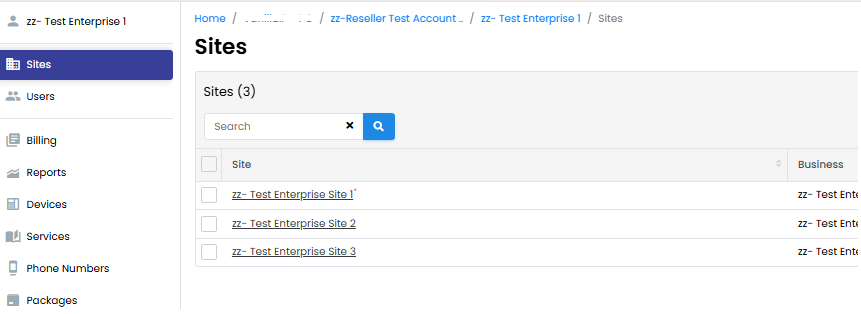
Select each site (without an asterisk) and on the next page press the delete button at the bottom of the page.

A pop up box will ask you to confirm, press OK and the Site will go into quarantine for 5 days. You can see that the Site is in quarantine as it is now shown in blue.
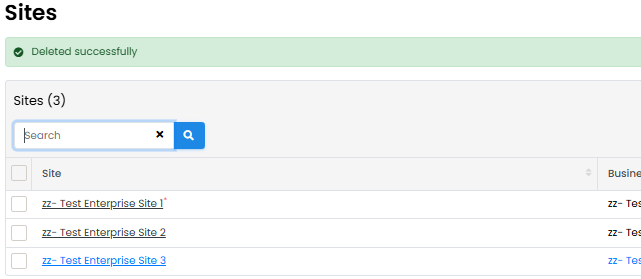
Now click back into the quarantined site and press the Delete Now button at the bottom of the page.

Once you are left with the main head office site only, you can now go up to Business level and delete the Business in the same way by going into the Business and pressing the Delete Business at the bottom of the page.
Again, the Business will go into quarantine, and you can either elect to leave it for the 5 day quarantine period or go back into the business and press Delete Now. The quarantine period does allow you to restore the Business if required.
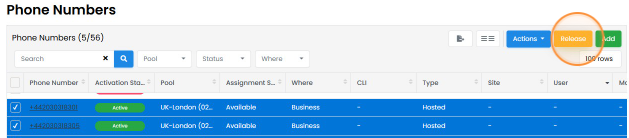
The final step is to remove any unwanted telephone numbers. Please note, this is not required if the numbers have exported as Uboss will automatically delete them overnight once the associated users/services have been deleted.
Once the Business has been fully deleted, the DDIs will automatically move up to your top level. Select Telephone Numbers in the left hand menu and find the required DDIs. If they are showing as 'On Hold' you will need to tick the left hand box and using the blue Actions button, change them to Available. Once they are showing as ‘Available’, tick the left hand box(es) and press ‘Release’ and then confirm using the pop up box.