In this article you will learn what services are required and how to provision a SIP Trunk on Uboss.
Prerequisites
The following services, packages and device need to be tariffed and available in Uboss:
- BW-SIP Trunk Group - Standard
- BW-SIP Trunks (TCC) - Standard
- BW-SIP-Enterprise User Group
- SIP-1M-User-Pilot
- Generic SIP Trunk
Optionally depending on the customers on premise equipment there may be a requirement to have multiple SIP users assigned to the SIP Trunk, in this scenario the users would require:
- SIP-1M-User-Standard
Adding a SIP Trunk Device
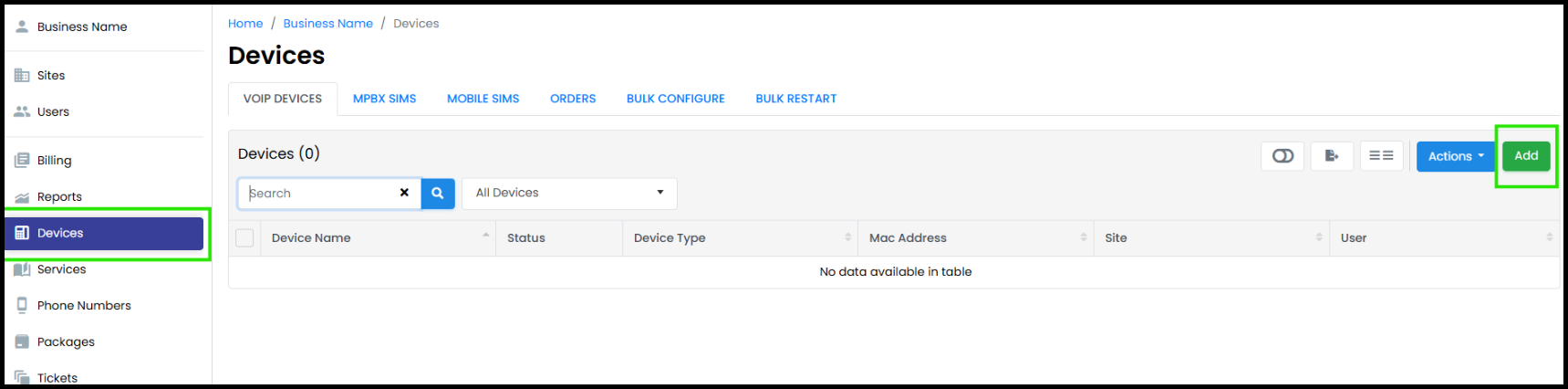
Before building a SIP trunk a SIP trunk device must be added. In the Uboss portal, click on "Devices" on the left and then click on "Add" on the top right:
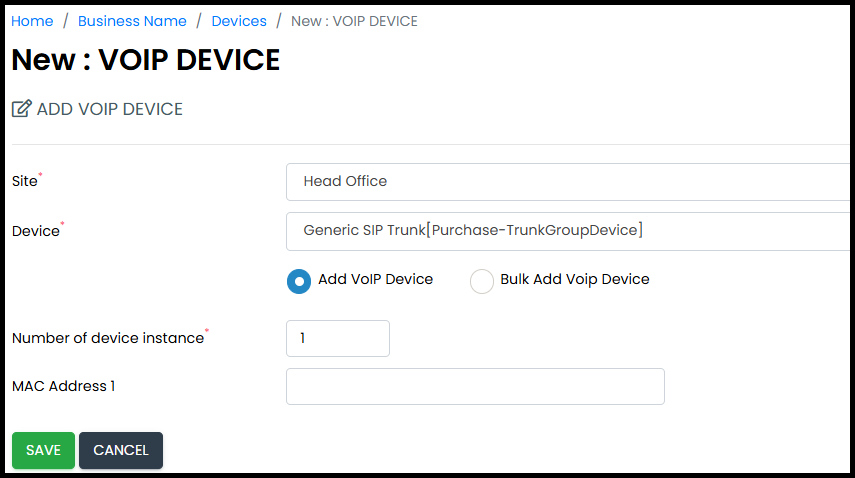
In the new Window select "Generic SIP Trunk" from the Device dropdown menu,put "1" for "Number of device instances", leave the MAC Address field empty and click on "Save"
Building a SIP Trunk
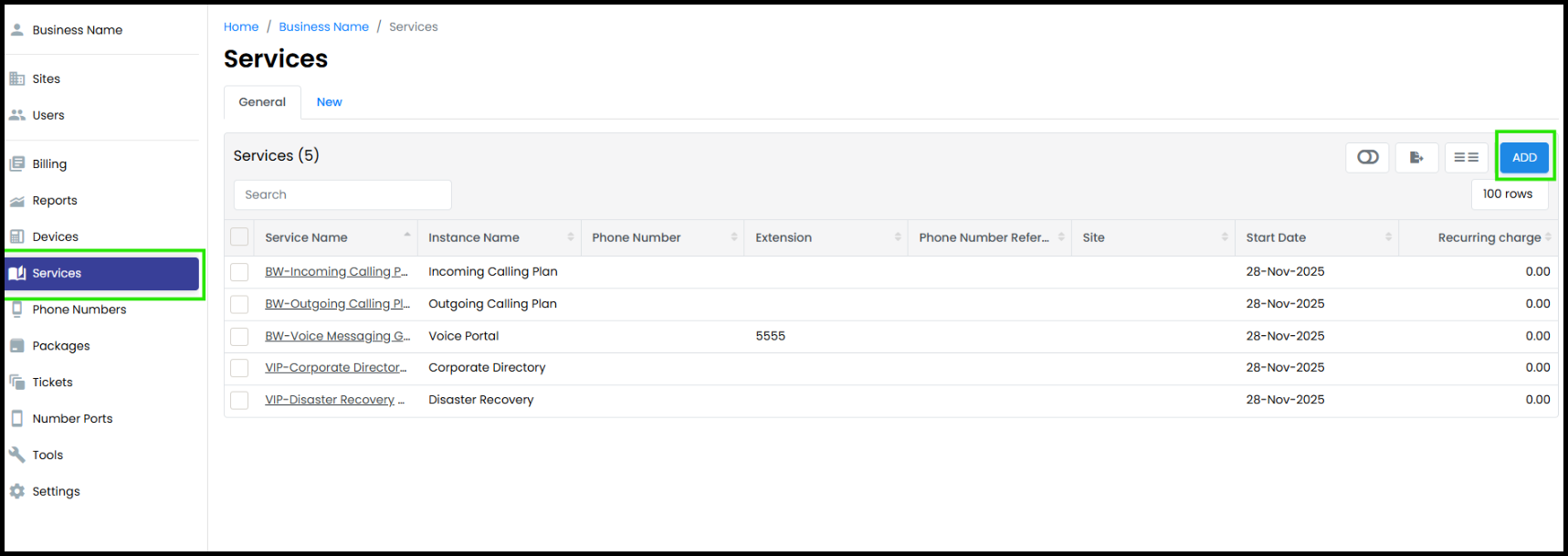
At the business level, go to the "Services" menu on the left and then click on "Add" on the top right
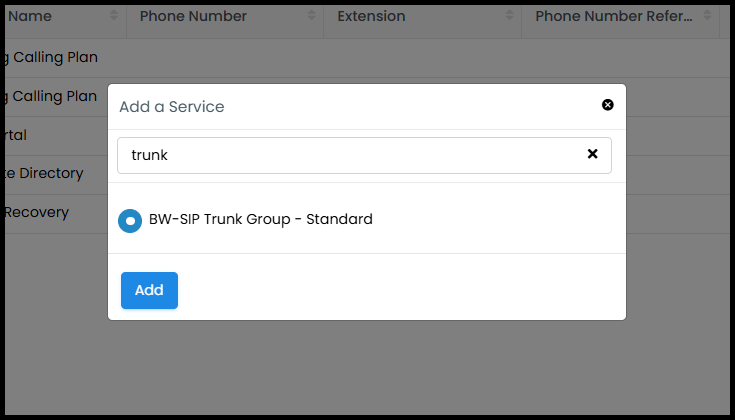
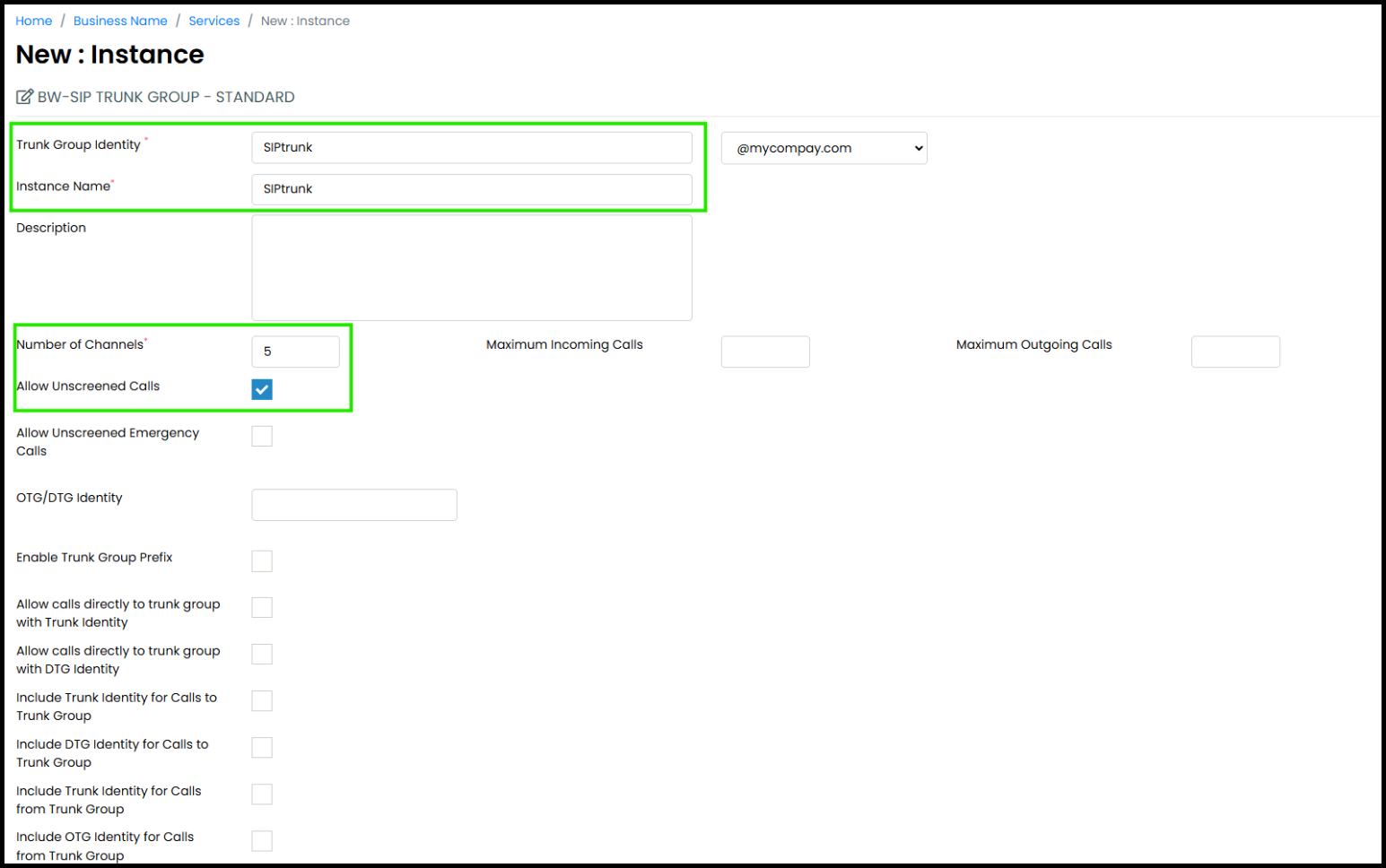
In the pop-out window search for "Trunk", select "BW-SIP Trunk Group - Standard" and click on "Add"
Complete the following:
- Trunk Group Identity
- Instance Name
- Number of Channels
- Enable "Allow Unscreened Calls"
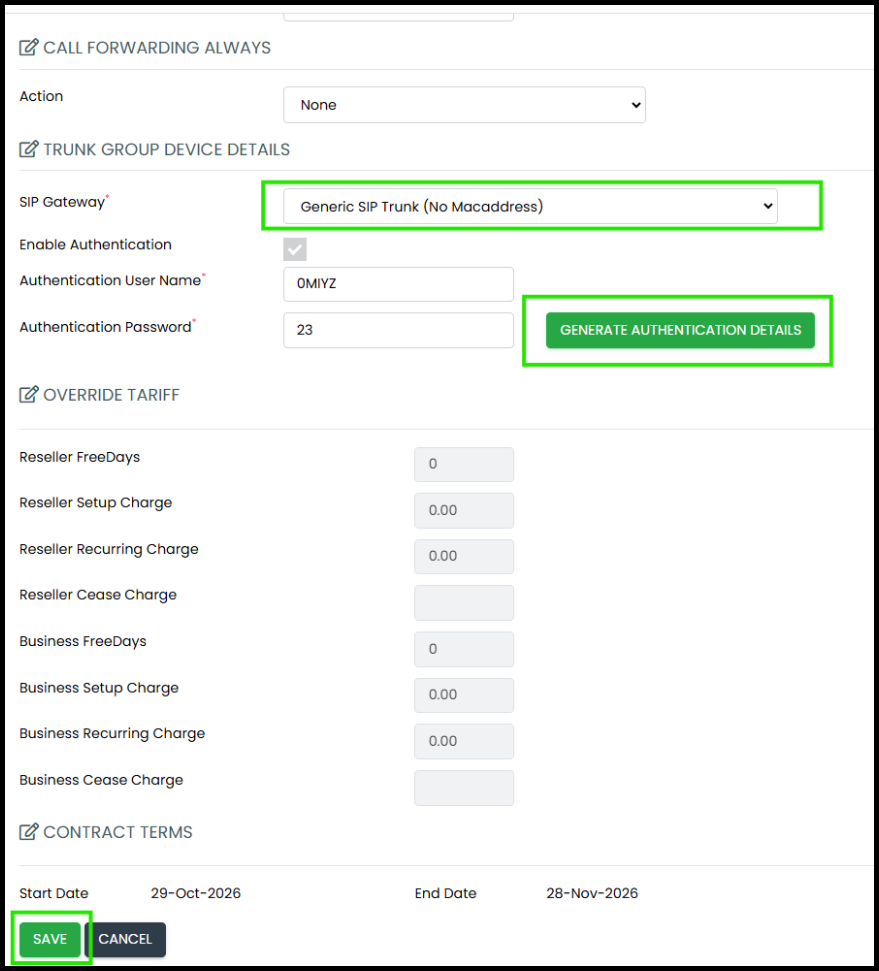
- Under SIP Gateway select the "Generic SIP Trunk" device that we added previously
- Complete the "Authentication User Name and "Authentic Password" manually or click on "Generate Authentication Details" for them to be automatically generated.
Finally click on "SAVE"
Adding and Assigning a Pilot User
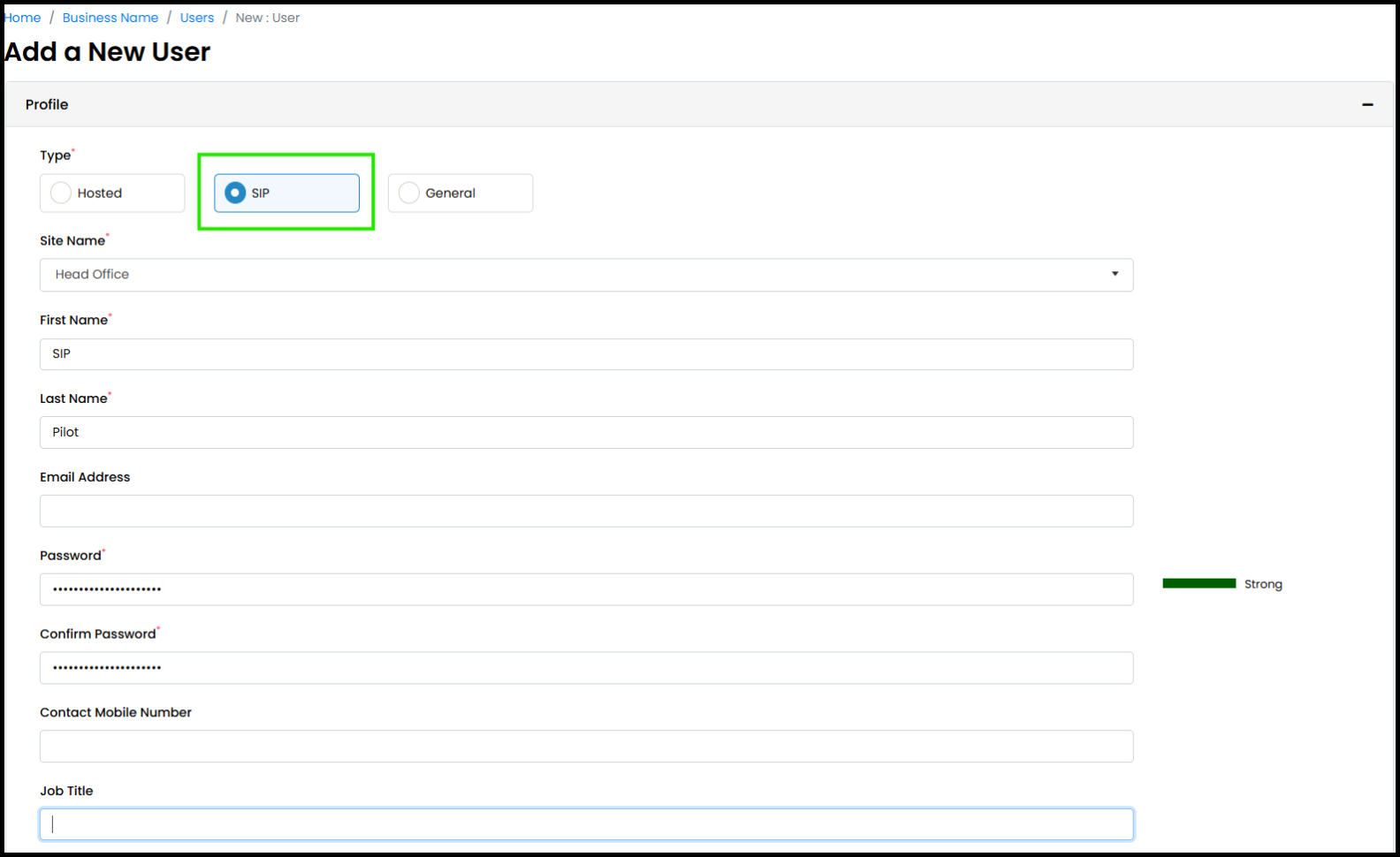
First we need to add a new SIP user, click on "Users" on the left and then "Add" on the top right. Then choose "Add" in the dropdown

Complete the following fields:
- Type - Must be set to SIP
- First Name
- Last Name
- Password
- Confirm Password
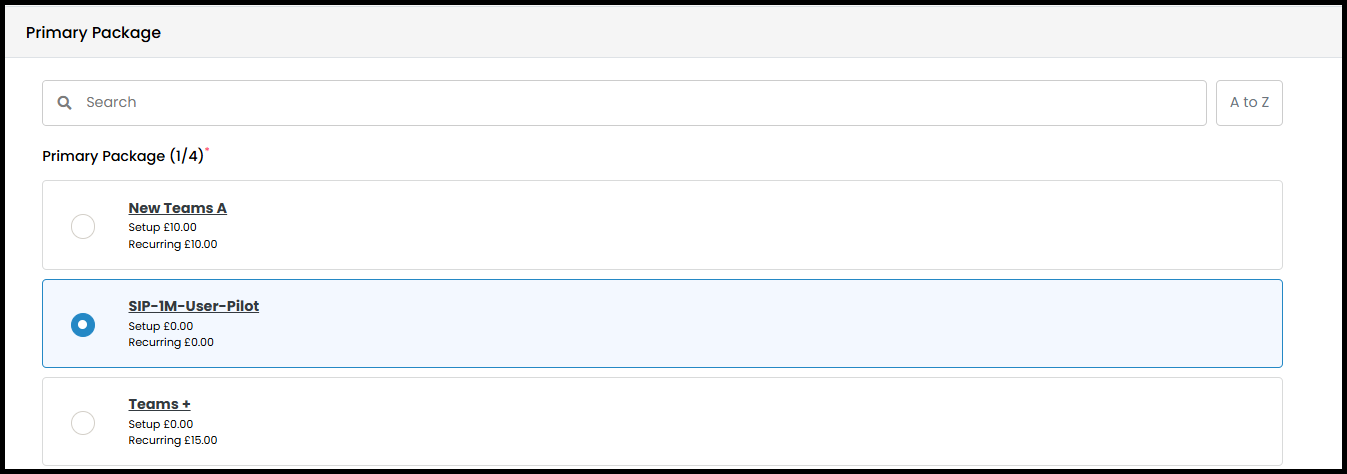
Scroll down and select the Pilot User package:
Scroll down further to the VOIP section and set the folloiwng:
- Phone Number - Must be a phone number and not extension only
- Extension
- Primary Device - Choose the SIP Trunk that you setup previously
Finally press "Add User"
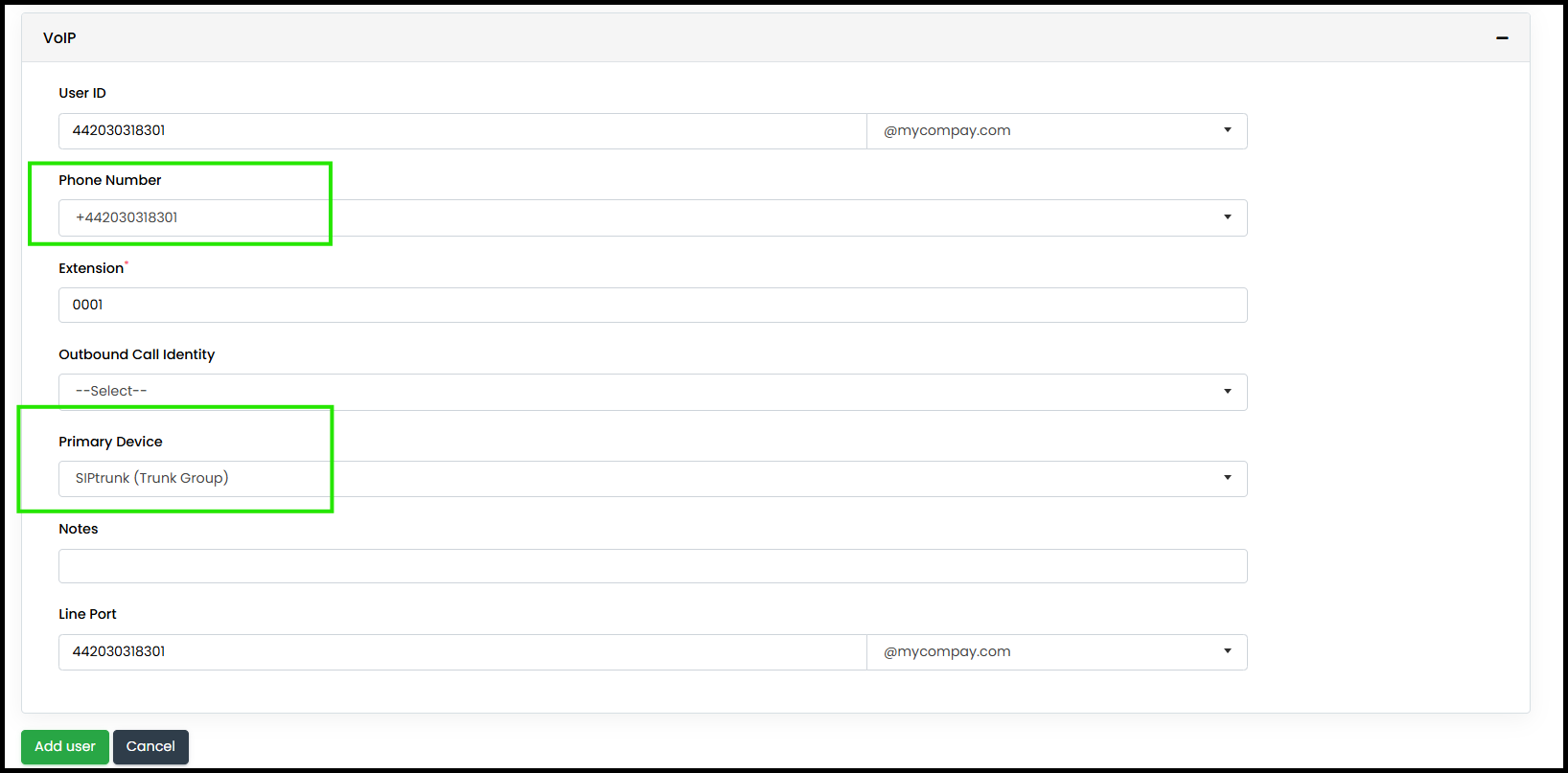
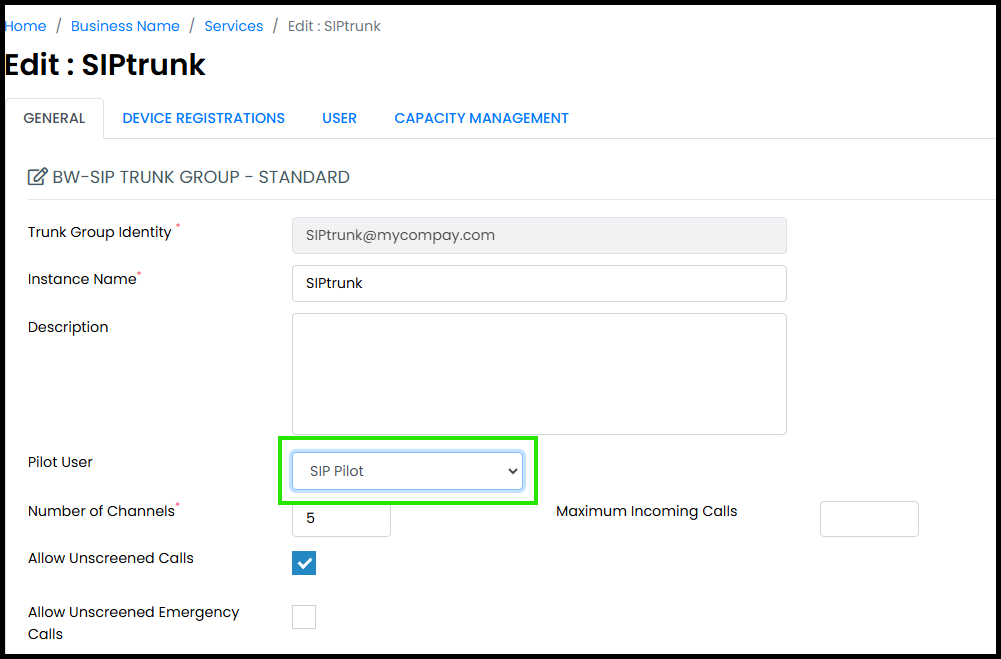
Once the user is successfully added, the user needs to be set as the pilot to the SIP Trunk, so go back to the SIP Trunk configuration under the Services menu.
In the SIP Trunk configuration page set the pilot user:
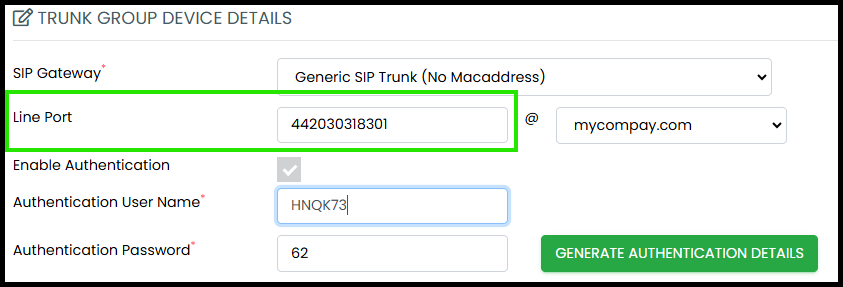
Once the Pilot User is set the SIP Credentials section will be updated with the lineport details needed to register the SIP trunk on your PBX or SIP gateway:
Assigning multiple numbers to the SIP Trunk
If only one number is required then the SIP Trunk is ready to go, however, most customers require multiple numbers to be assigned and routing down the SIP Trunk.
To configure this you have 2 options:
- Add individual SIP Users with DDIs - follow the same instructions as when adding the SIP Pilot user but assign the SIP user package rather than Pilot
- Assign Numbers via the Enterprise Trunk Number routing
Here we will be looking at option 2. First we need to assign the "BW-SIP-Enterprise User Group" service. So click on "Services" on the left menu then click on "Add" on the top right:
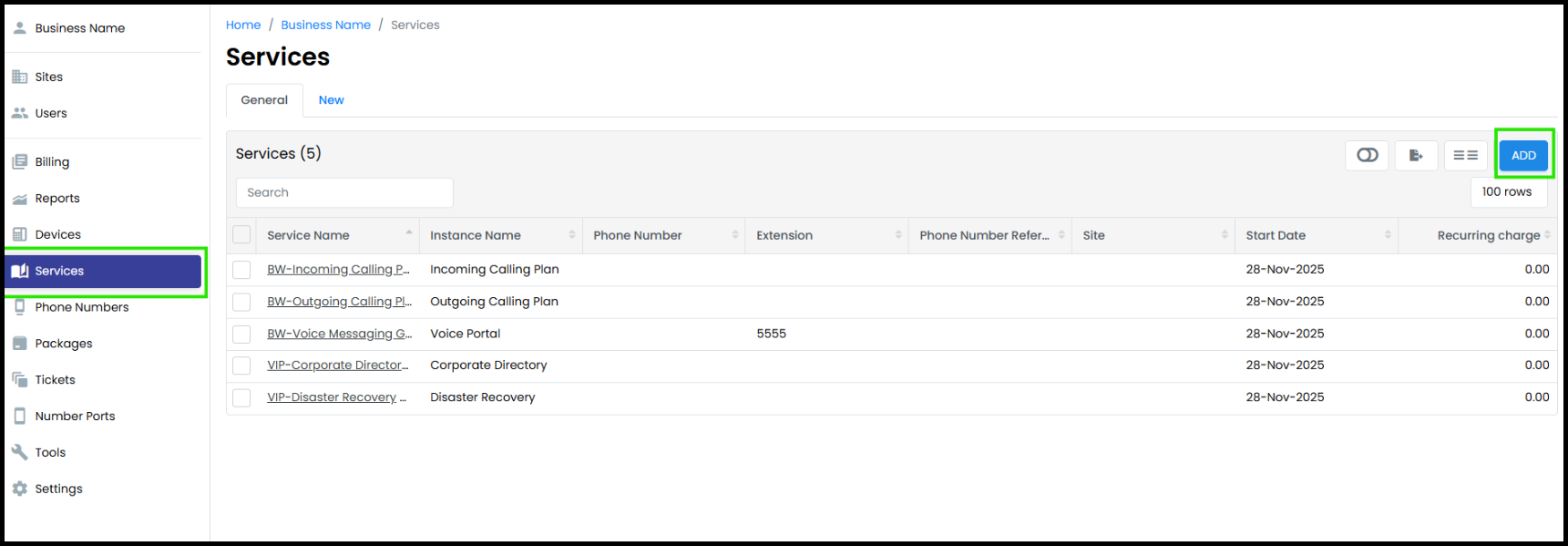
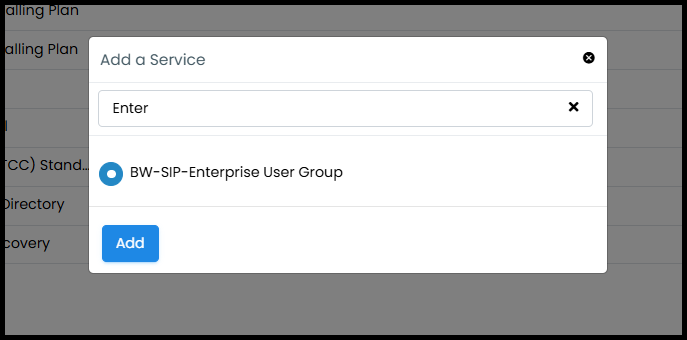
In the pop-out window click search for and add the "BW-SIP-Enterprise User Group":
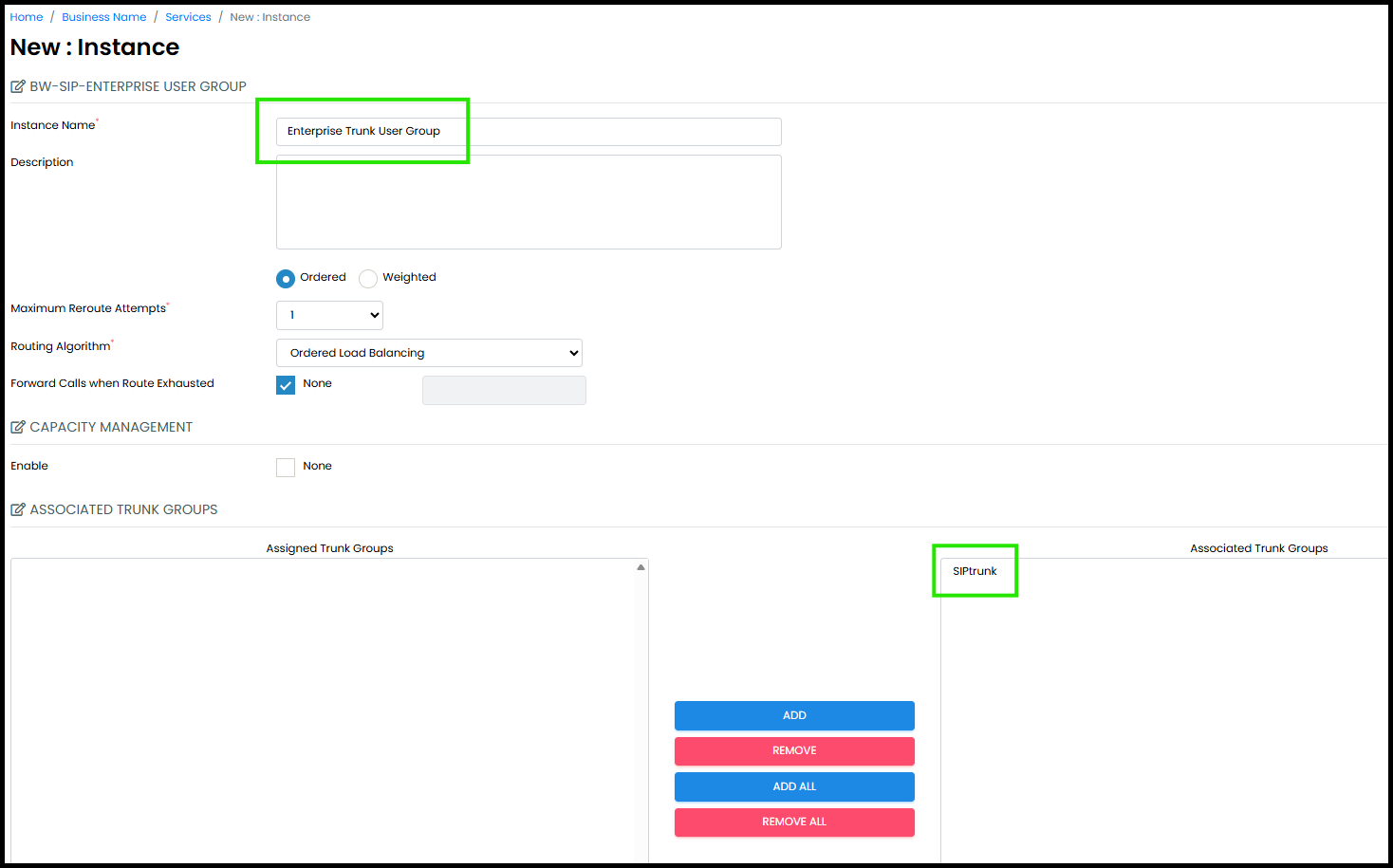
Complete the following:
- Instance Name
- Associated Trunk Groups - add the SIP Trunk that you have previously added to the business.
Everything else can be left as default and just press "SAVE":
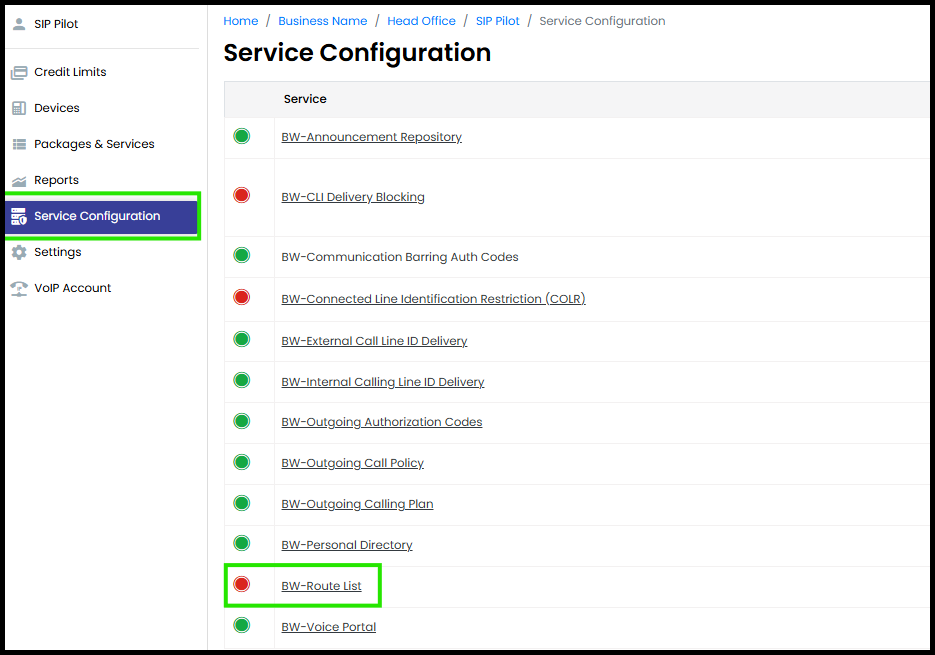
Now we need to associate the numbers, under the SIP Pilot User, go to "Service Configuration" on the left, then "BW-Route LIst" from the main screen:
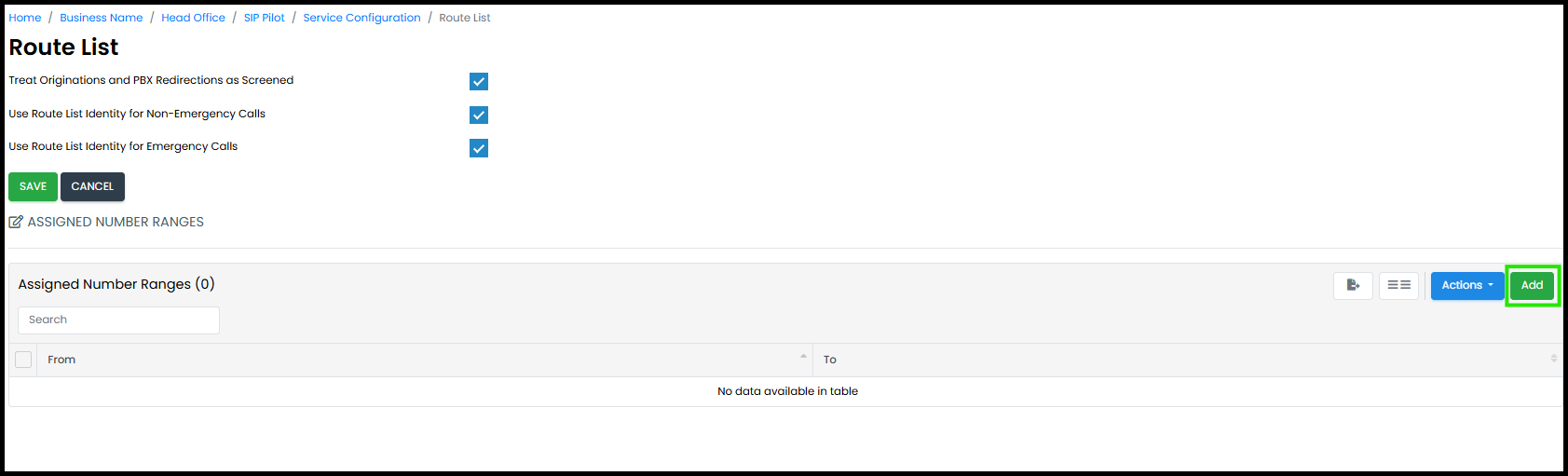
Click on "Add":
Select the numbers you want to add and then click on "Actions" and then select "Assign Numbers":
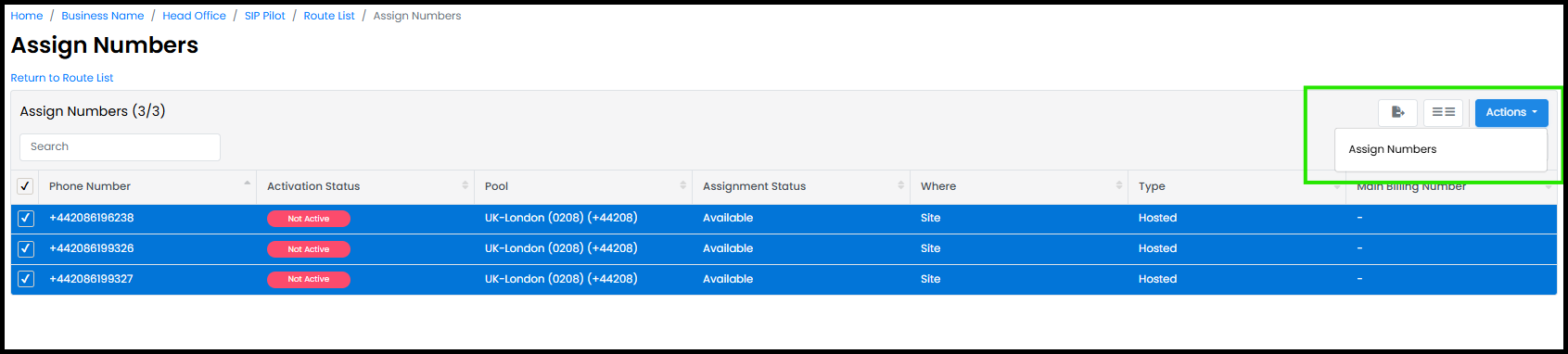
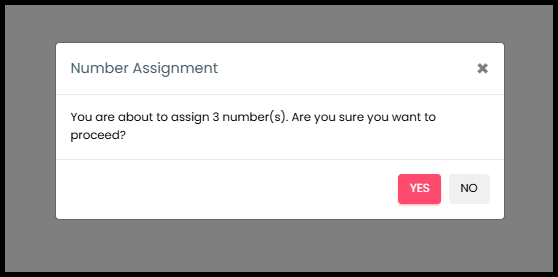
The confirmation pop-out window will tell you how many numbers are being assigned, if you are happy to proceed click on "Yes":
The Uboss provisioning side of the SIP Trunk service is now complete.
PBX/SIP Gateway Configuration
Every PBX or SIP Gateway will have different configuration options, the key points that you will need to setup on the respective equipment are:
SIP Server Address - sbc.insmartcloud.com
Outbound Proxy - sbc.insmartcloud.com
From Uboss under the SIP Trunk service go to section "Trunk Group Device Details", use the Lineport(without the domain), Authentication User Name and Authentication SIP Password to register the trunk.
Some devices do not have a separate field for the lineport, if this is the case, the SIP Trunk in Uboss can be edited so that the Lineport and Authentication User Name can be the same and this will resolve the issue.
Codecs should be in the following order - G722, G711A/PCMA, G729, G711U/PCMU