Firstly you will need to have the firmware file on the computer you are accessing the web GUI from, please download the firmware for the device type you upgrading from the below, if it is not present below please contact your provider:
| Model | Download |
|---|---|
| T3 Series | Download |
| T4 Series | Download |
| T5 Series | Download |
T3 Series: T31G, T31P, T31W, T33G, T34W
T4 Series: T42U, T43U, T44U, T44W, T46U, T48U
T5 Series: T53, T53W, T54W, T57W
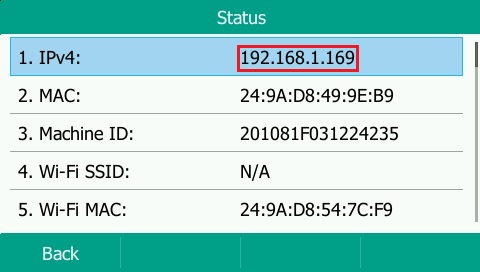
You'll then require the IP address of the handset, you can find this from pressing the OK button which will show the status page with the IP shown as per the below:
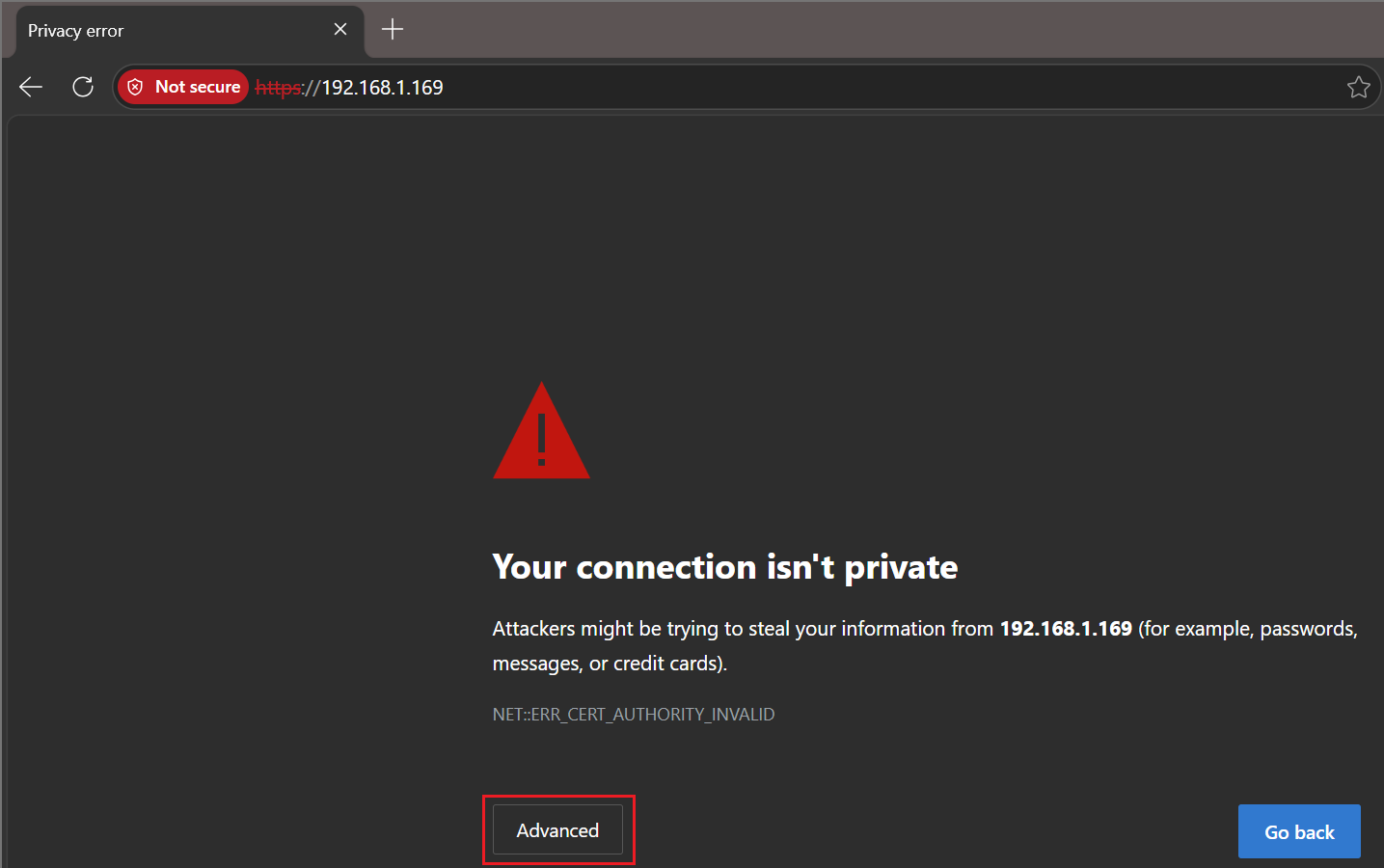
Then with that IP address you enter it into your browser with https:// in front it so if for example the IP address of the phone was 192.168.1.169 you would enter https://192.168.1.169 into the browser. You may see a warning regarding the certificate as per the below press advanced:
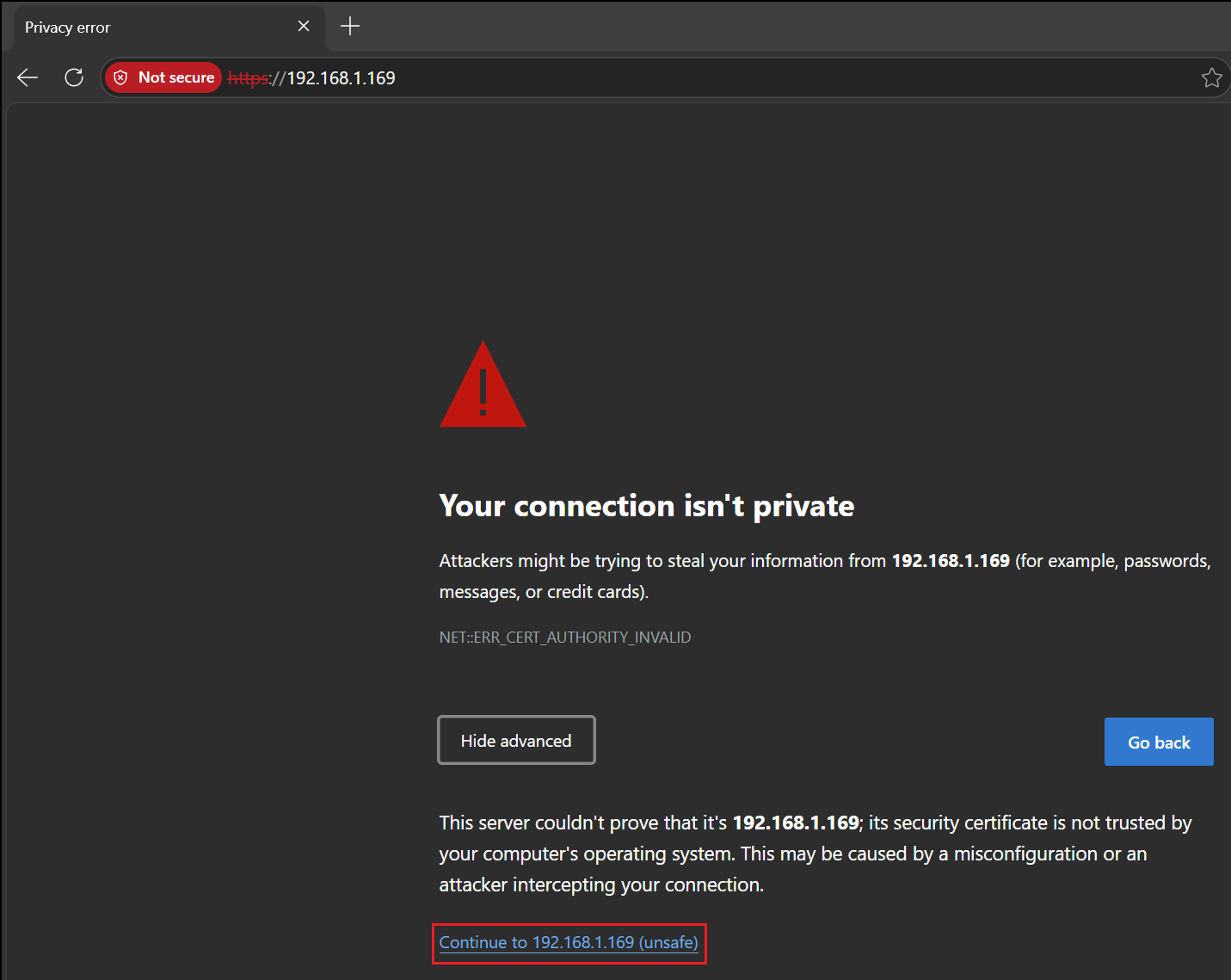
Then press the continue to link:
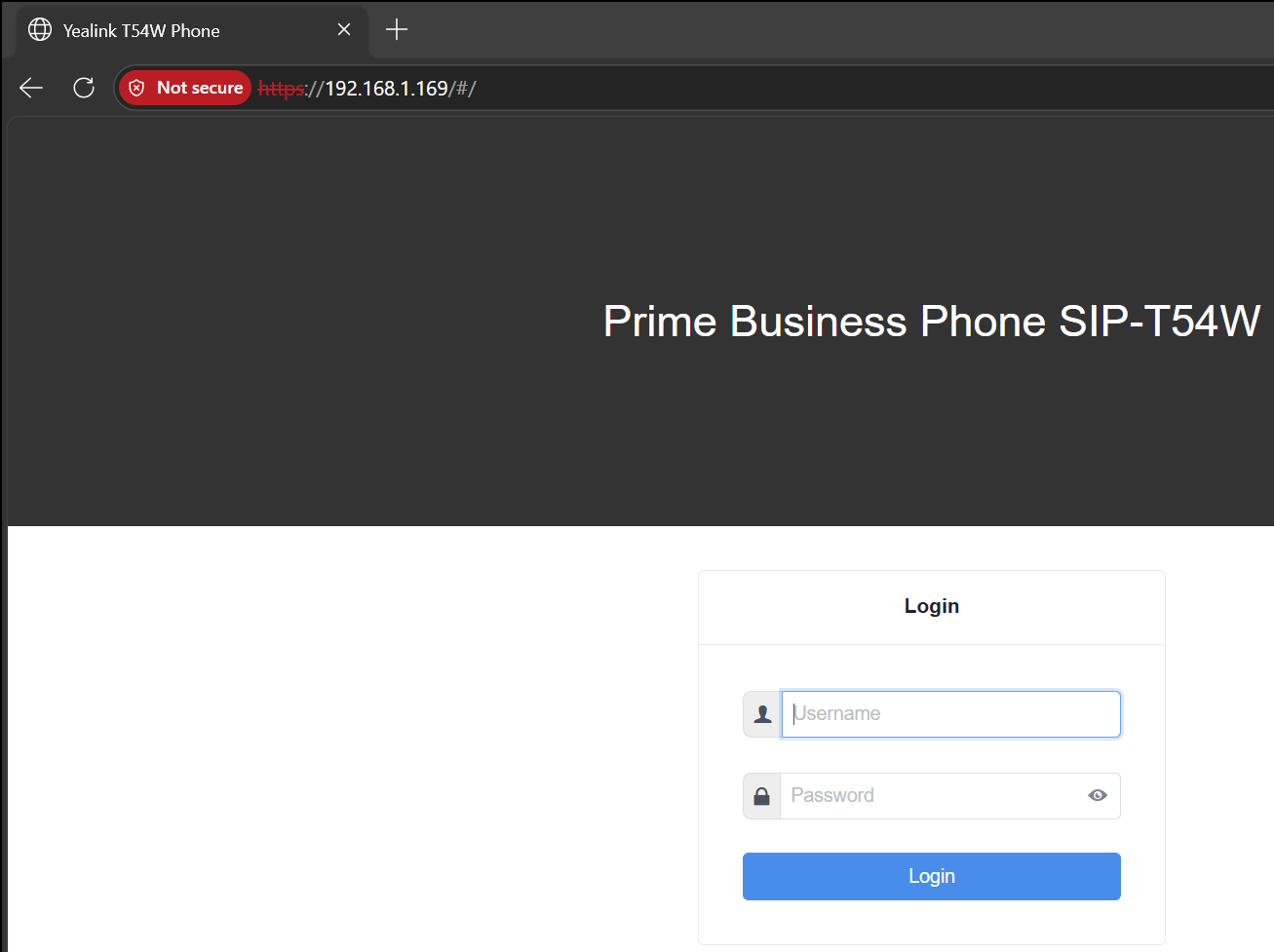
You will then see the login prompt, if you have factory reset the device the username will be admin and the password will also be admin:
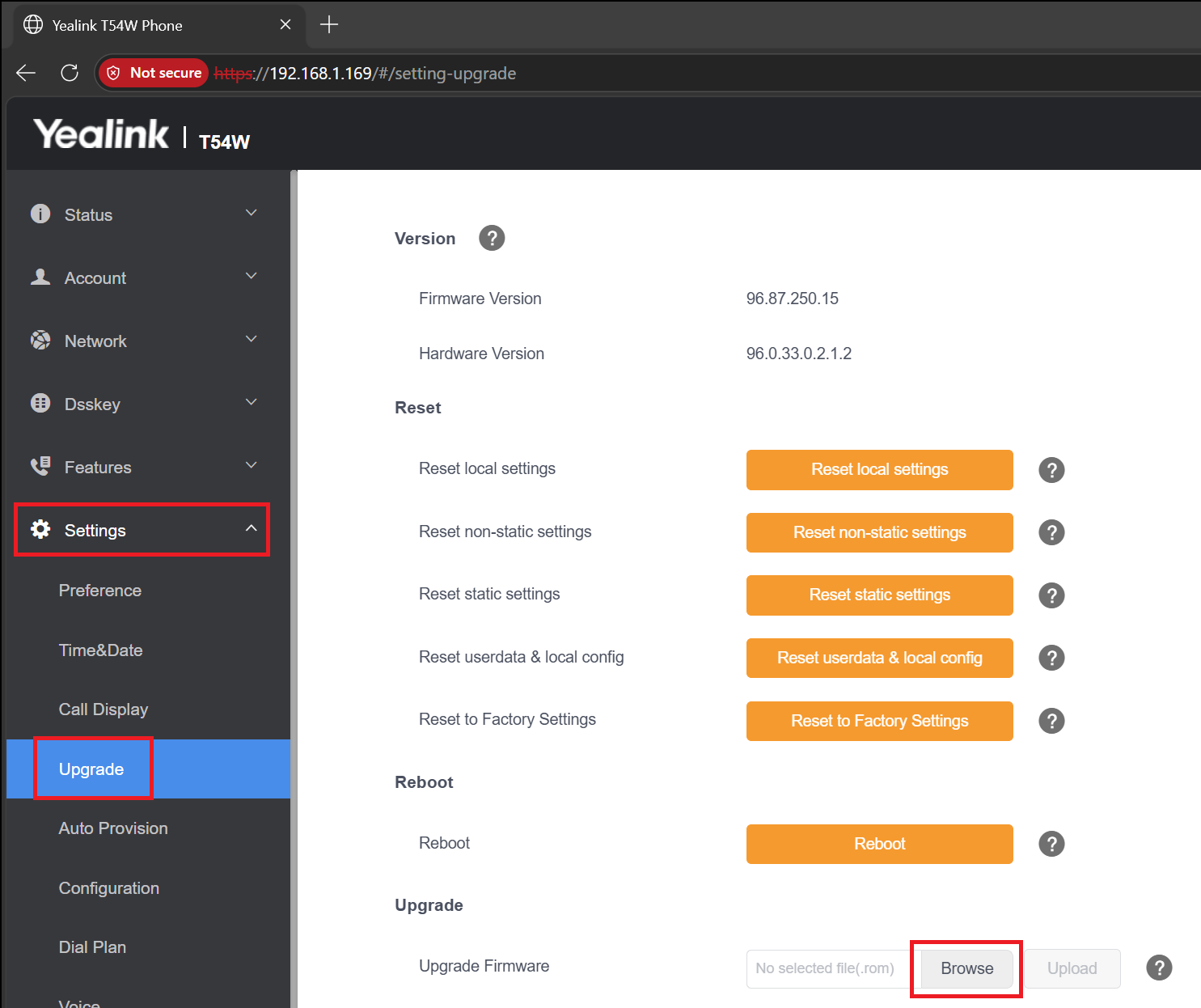
Once logged in you will need to navigate to "Settings" down the left side menu and then "Upgrade" in the options that appear below it, then "Browse" as highlighted below to select the file you downloaded:
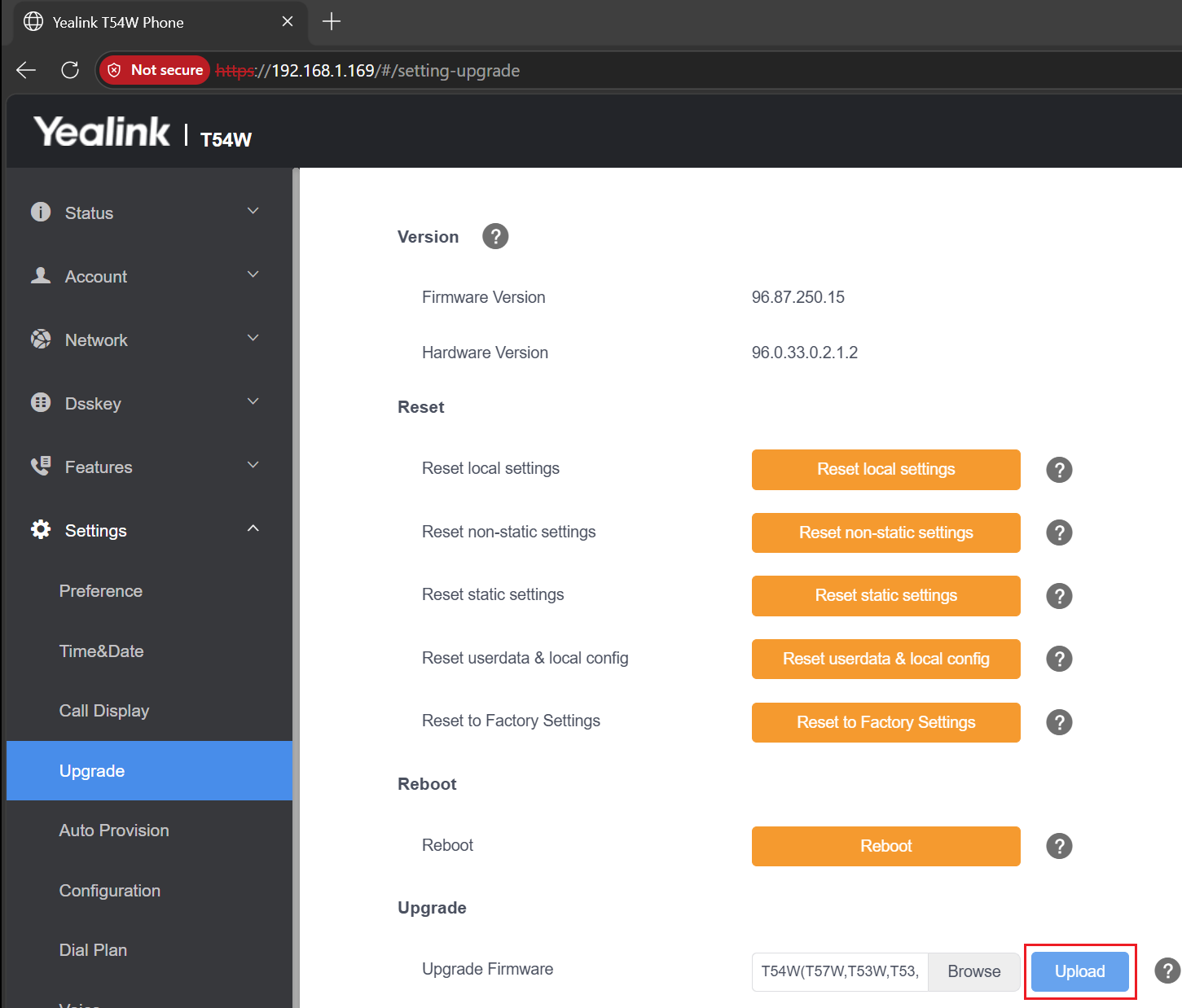
Once selected you then press the "Upload" button:
Which will display the following warning which you need to press OK on:
.png)
You will then see on the handsets display various updates regarding the upgrade process, and once complete you may need to factory reset once more to trigger the automatic auto provisioning process.